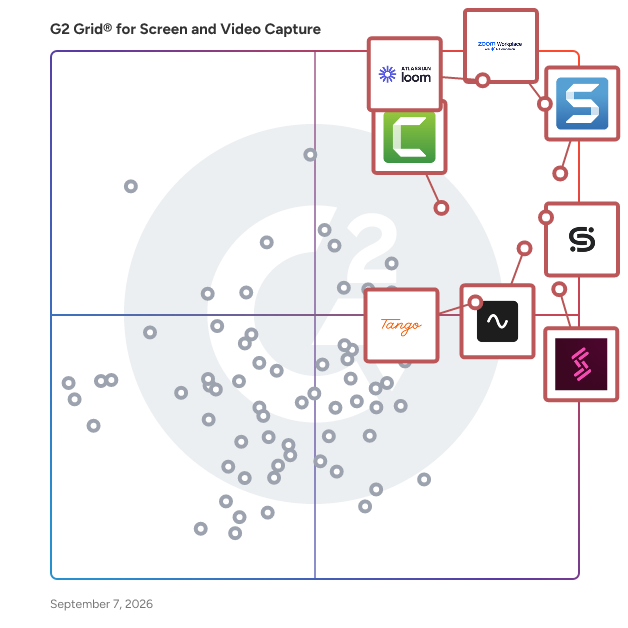
# Best Screen and Video Capture Software - Page 14

*By [Neeraja Prakash](https://research.g2.com/insights/author/neeraja-prakash)*


Screen and video capture software enables users to take screenshots or record video of their computer desktop, capturing desktop activity as image files or video recordings to help teams share visual information, create tutorials, record demonstrations, and support troubleshooting processes.

### Core Capabilities of Screen and Video Capture Software

To qualify for inclusion in the Screen and Video Capture category, a product must:

- Capture or record any area of the computer screen, either the whole desktop or only a portion, as an image or video file
- Have adjustable editing and customization capabilities

### Common Use Cases for Screen and Video Capture Software

Individuals and teams use screen and video capture tools to document, share, and explain what is happening on their screens. Common use cases include:

- Recording product demonstrations and how-to tutorials for internal or external audiences
- Capturing screenshots or screen recordings to illustrate bugs, errors, or UI feedback
- Creating training materials and troubleshooting sessions for onboarding or support purposes

### How Screen and Video Capture Software Differs from Other Tools

Screen and video capture tools focus on recording and sharing what a user sees on their screen, distinguishing them from [remote desktop software](https://www.g2.com/categories/remote-desktop), which replicates a desktop experience for full remote control and access. Unlike [screen sharing software](https://www.g2.com/categories/screen-sharing), which enables live screen display for presentations or web conferencing, screen and video capture is built for asynchronous use, producing files that can be shared, stored, and viewed on demand.

### Insights from G2 on Screen and Video Capture Software

Based on category trends on G2, ease of capture and editing flexibility stand out as standout features. Time savings in creating instructional content and clearer async communication stand out as primary benefits of adoption.


## Top Screen and Video Capture Software at a Glance
| # | Product | Rating | Best For | What Users Say |
|---|---------|--------|----------|----------------|
| 1 | [Zoom Workplace](https://www.g2.com/products/zoom-workplace/reviews) | 4.5/5.0 (53,483 reviews) | Recorded meetings with AI-summarized transcripts | "[Reliable Meetings with Smart AI Summaries and Seamless Collaboration](https://www.g2.com/survey_responses/zoom-workplace-review-12831216)" |
| 2 | [Loom](https://www.g2.com/products/atlassian-loom/reviews) | 4.7/5.0 (2,396 reviews) | Async video walkthroughs replacing meetings | "[Seamless Video Sharing with Loom](https://www.g2.com/survey_responses/loom-review-12844537)" |
| 3 | [Snagit](https://www.g2.com/products/snagit/reviews) | 4.7/5.0 (5,859 reviews) | Annotated screenshots and step-by-step documentation | "[Easy, Fast, and Great Value—Snagit Is a Daily Essential](https://www.g2.com/survey_responses/snagit-review-12950040)" |
| 4 | [Scribe](https://www.g2.com/products/scribe/reviews) | 4.8/5.0 (866 reviews) | Step-by-step process documentation with auto-capture | "[Detailed Screenshots, User-Friendly, and a Huge Upgrade from Manual Documentation](https://www.g2.com/survey_responses/scribe-review-12968483)" |
| 5 | [Storylane](https://www.g2.com/products/storylane/reviews) | 4.7/5.0 (1,492 reviews) | — | "[Intuitive, Clean UI with Solid Performance and Helpful AI Features](https://www.g2.com/survey_responses/storylane-review-13022553)" |
| 6 | [Riverside](https://www.g2.com/products/riverside/reviews) | 4.8/5.0 (1,727 reviews) | Remote podcast recording with local track capture | "[Effortless Recording and Amazing Text-Based Editing](https://www.g2.com/survey_responses/riverside-review-13034561)" |
| 7 | [Camtasia](https://www.g2.com/products/camtasia/reviews) | 4.6/5.0 (1,703 reviews) | Screen tutorial editing with cursor control | "[Intuitive, Medium-Weight Editor That Delivers Professional Results](https://www.g2.com/survey_responses/camtasia-review-12891940)" |
| 8 | [Tango](https://www.g2.com/products/tango-tango/reviews) | 4.7/5.0 (503 reviews) | Auto-captured step-by-step workflow documentation | "[Tango Makes Process Training Effortless](https://www.g2.com/survey_responses/tango-review-12665989)" |
| 9 | [Vimeo](https://www.g2.com/products/vimeo/reviews) | 4.3/5.0 (700 reviews) | Ad-free video hosting with privacy controls | "[Reliable Video Hosting and Website Embedding with Vimeo](https://www.g2.com/survey_responses/vimeo-review-5026186)" |
| 10 | [Claap](https://www.g2.com/products/claap/reviews) | 4.6/5.0 (417 reviews) | — | "[Great tool for asynchronous team communication](https://www.g2.com/survey_responses/claap-review-12975710)" |

---
## What Are the Most Common Questions About Screen and Video Capture Software?
*AI-generated · Last updated: May 26, 2026*
### Which tool supports screen capture for compliance purposes?
Based on G2 reviews, several products in the screen and video capture software category are used in compliance-sensitive workflows, but [Zoom Workplace](https://www.g2.com/products/zoom-workplace/reviews) appears most often in recent review data. According to verified users, it supports controlled screen sharing, meeting passwords, waiting rooms, role-based permissions, and recording for audit or follow-up needs. G2 reviewers mention using it for compliance-related interactions, secure internal meetings, and capturing sessions where regulated information needs to be handled carefully. Reviewers also note that secure setup matters, since some protections depend on how meetings are configured. For teams documenting conversations or walkthroughs in regulated environments, recent reviews show Zoom Workplace being used in that context most consistently.


### Which solution supports multi-format video exporting?
Based on G2 reviews, [Camtasia](https://www.g2.com/products/camtasia/reviews) is frequently mentioned for exporting videos into multiple formats for sharing and reuse. According to verified users, it combines screen recording and editing in one place, then makes it easier to create shareable outputs for training, tutorials, shorts, and other content types. G2 reviewers mention using it to export content for online courses, YouTube, and internal training, which makes it useful when teams need flexibility after recording. Reviews also highlight that it is approachable for non-specialists while still offering enough functionality for polished output. That combination makes it one of the clearest recent matches for buyers who need multi-format exporting support.


### What platform provides analytics on video engagement?
Based on G2 reviews, video engagement analytics show up most clearly in feedback for platforms focused on hosted or shared video experiences. According to verified users, Vidyard, Wistia, Vimeo, and Consensus are all used to understand who watched, how long they stayed engaged, and which parts of videos mattered most. G2 reviewers mention using these insights for follow-up, lead qualification, content performance tracking, and improving sales or training materials. Reviews for Vidyard and Consensus especially emphasize viewer-level activity, while Wistia is often mentioned for marketing analytics and Vimeo for review and sharing workflows. For buyers prioritizing engagement visibility, recent reviews point to these products as the strongest fit.

**Here are some of the top-rated products on G2:**

- [Vidyard](https://www.g2.com/products/vidyard/reviews) – used to track who watched videos, how long they watched, and which content drove follow-up
- [Wistia](https://www.g2.com/products/wistia/reviews) – used for branded video hosting with viewer analytics for webinars, campaigns, and training content
- [Consensus](https://www.g2.com/products/consensus/reviews) – used for demo sharing with detailed viewing insights that help qualify buyer interest


### Which vendor offers AI-powered video transcription?
Based on G2 reviews, AI-powered transcription is a recurring theme across several vendors in this category. According to verified users, Loom, Zoom Workplace, Riverside, Descript, VEED, and Claap all receive mentions for automatically turning recordings into searchable text or summaries. G2 reviewers mention using these capabilities to review meetings, create SOPs, speed up editing, share knowledge asynchronously, and reduce manual note-taking. Some reviews also point out that transcription accuracy can vary with accents or technical vocabulary, but the core value is saving time and making recorded content easier to reuse. If transcription is a buying priority, recent reviews suggest these vendors are among the strongest options to evaluate first.

**Here are some of the top-rated products on G2:**

- [Loom](https://www.g2.com/products/atlassian-loom/reviews) – used to generate transcripts for SOPs, tutorials, and async team communication
- [Zoom Workplace](https://www.g2.com/products/zoom-workplace/reviews) – used for meeting transcription, summaries, and reviewing calls later
- [Riverside](https://www.g2.com/products/riverside/reviews) – used for podcast and interview transcription to speed editing and clip creation


### Which screen and video capture software offers the highest resolution?
Based on G2 reviews, buyers asking about the highest resolution usually care about capture quality, clarity, and dependable output rather than a universal technical maximum. According to verified users, Riverside, VEED, OBS Studio, and Vidyard are all praised for strong recording quality in recent reviews. G2 reviewers mention high-quality local recording, strong screen capture output, sharp video for demos, and clear visuals for webinars, podcasts, and walkthroughs. Some reviews call out settings such as high-definition or 4K-related workflows, while others emphasize consistently strong output across devices. Because recent reviews describe quality in different ways, the safest takeaway is that these products stand out most often when users talk about producing sharper, more professional-looking video.

**Here are some of the top-rated products on G2:**

- [Riverside](https://www.g2.com/products/riverside/reviews) – used for high-quality local audio and video recording for podcasts, interviews, and webinars
- [VEED](https://www.g2.com/products/veed/reviews) – used to create polished videos with strong visual quality for social, training, and marketing content
- [OBS Studio](https://www.g2.com/products/obs-studio/reviews) – used for high-resolution screen capture and streaming with flexible recording controls


### What is the most affordable screen capture software for SMBs?
Based on G2 reviews, affordable options for SMBs usually balance simple setup, everyday usefulness, and lower perceived cost. According to verified users, Loom, Snagit, and Scribe are commonly described as easy to adopt for small teams, with reviews calling out time savings, approachable pricing, or good value for practical documentation and async sharing. G2 reviewers mention Loom for quick linked video sharing, Snagit for affordable screenshot editing and documentation, and Scribe for faster SOP creation without heavy manual work. Review sentiment also shows that affordability is often tied to how much production time a tool removes. For SMB buyers focused on practical value, these are among the most consistently referenced recent options.

**Here are some of the top-rated products on G2:**

- [Loom](https://www.g2.com/products/atlassian-loom/reviews) – used for quick async updates, walkthroughs, and link-based video sharing without meeting overhead
- [Snagit](https://www.g2.com/products/snagit/reviews) – used for low-friction screenshot capture, markup, and documentation for support or training teams
- [Scribe](https://www.g2.com/products/scribe/reviews) – used to create fast step-by-step guides and SOPs for onboarding and process documentation


### What is the top-rated screen and video capture software for enterprises?
Based on G2 reviews, enterprise buyers in this category often prioritize broad collaboration workflows, security controls, integrations, and support for large-scale communication. According to verified users, Zoom Workplace, Loom, and Snagit appear frequently in recent review data for these use cases. G2 reviewers mention Zoom Workplace for meetings, webinars, recording, and admin controls across distributed teams; Loom for scalable async communication, demos, and internal knowledge sharing; and Snagit for enterprise documentation, markup, and support workflows. Reviews also suggest that different enterprise teams use these tools for different jobs rather than expecting one product to cover everything. For large organizations, recent feedback points to these as some of the most commonly trusted options on G2.

**Here are some of the top-rated products on G2:**

- [Zoom Workplace](https://www.g2.com/products/zoom-workplace/reviews) – used for enterprise meetings, webinars, screen sharing, recording, and distributed collaboration
- [Loom](https://www.g2.com/products/atlassian-loom/reviews) – used to scale internal updates, feedback, and training without relying on live meetings
- [Snagit](https://www.g2.com/products/snagit/reviews) – used for enterprise documentation, issue reporting, and visual communication across teams


### What is the best tool for recording webinars and tutorials?
Based on G2 reviews, the best fit for webinars and tutorials depends on whether teams want live event delivery, post-production editing, or both. According to verified users, Zoom Workplace, Riverside, and Camtasia are repeatedly used for these jobs. G2 reviewers mention Zoom Workplace for webinars, virtual classes, and team training; Riverside for recording webinar-style sessions, interviews, and polished remote content; and Camtasia for tutorial videos, training modules, and reusable educational content. Reviews consistently highlight ease of setup, recording quality, and the ability to create resources people can revisit later. For buyers comparing tools in the screen and video capture software category, these three show up most often in recent reviews tied directly to webinar and tutorial workflows.

**Here are some of the top-rated products on G2:**

- [Zoom Workplace](https://www.g2.com/products/zoom-workplace/reviews) – used for webinars, virtual classes, recordings, and collaborative training sessions
- [Riverside](https://www.g2.com/products/riverside/reviews) – used for webinar-style recordings, interviews, and polished tutorial content with editing support
- [Camtasia](https://www.g2.com/products/camtasia/reviews) – used to create tutorial videos, training modules, and reusable educational walkthroughs


### What platform integrates screen capture with cloud storage?
Based on G2 reviews, several products connect screen capture with cloud-based access, storage, or link sharing so teams can avoid passing files around manually. According to verified users, Loom, Vimeo, and Wistia are often used this way, with links and hosted content becoming part of the workflow right after recording. G2 reviewers mention Loom for instant shareable links, Vimeo for hosted screen recordings and sharable video links, and Wistia for centrally managed video libraries and embedded content across sites or apps. Reviews frame cloud integration less as a single feature and more as a smoother handoff from capture to distribution. For teams that want capture plus hosted access in one flow, these products stand out in recent review feedback.

**Here are some of the top-rated products on G2:**

- [Loom](https://www.g2.com/products/atlassian-loom/reviews) – used to record quickly and share cloud-hosted links without exporting files manually
- [Vimeo](https://www.g2.com/products/vimeo/reviews) – used for hosting, sharing, and organizing screen recordings and video content in one place
- [Wistia](https://www.g2.com/products/wistia/reviews) – used to manage hosted video libraries and embed training or marketing content across channels


### Which vendor provides real-time video annotation features?
Based on G2 reviews, real-time annotation is most commonly associated with tools used for training, troubleshooting, and process explanation while recording or marking up content. According to verified users, Snagit, Camtasia, and ScreenPal all support this style of workflow. G2 reviewers mention Snagit for arrows, callouts, blur, and markup on screenshots; Camtasia for adding highlights, callouts, and instructional elements to videos; and ScreenPal for annotations during recording that make tutorials easier to follow. Reviews emphasize that these features help replace long written explanations with clearer visual guidance. For buyers who need annotation built into their screen and video capture software workflow, these products appear most consistently in recent G2 feedback.

**Here are some of the top-rated products on G2:**

- [Snagit](https://www.g2.com/products/snagit/reviews) – used to add arrows, blur, callouts, and other visual markups to screenshots quickly
- [Camtasia](https://www.g2.com/products/camtasia/reviews) – used to add callouts, overlays, and training-focused edits to screen-recorded videos
- [ScreenPal](https://www.g2.com/products/screenpal/reviews) – used for screen recordings with annotations and educational walkthroughs that are easy to share


## How Many Screen and Video Capture Software Products Does G2 Track?
**Total Products under this Category:** 224

### Category Stats (Jun 2026)
- **Average Rating**: 4.53/5 The average rating of products in this category, based on all submitted ratings
- **Top Trending Product**: FocuSee (+0.52%) - Among all products in this category, FocuSee recorded the largest rating increase compared to last month
*Last updated: June 24, 2026*


## How Does G2 Rank Screen and Video Capture Software Products?

**Why You Can Trust G2's Software Rankings:**

- 30 Analysts and Data Experts
- 88,500+ Authentic Reviews
- 224+ Products
- Unbiased Rankings

G2's software rankings are built on verified user reviews, rigorous moderation, and a consistent research methodology maintained by a team of analysts and data experts. Each product is measured using the same transparent criteria, with no paid placement or vendor influence. While reviews reflect real user experiences, which can be subjective, they offer valuable insight into how software performs in the hands of professionals. Together, these inputs power the G2 Score, a standardized way to compare tools within every category.


## Which Screen and Video Capture Software Is Best for Your Use Case?

- **Leader:** [Zoom Workplace](https://www.g2.com/products/zoom-workplace/reviews)
- **Highest Performer:** [Supademo](https://www.g2.com/products/supademo/reviews)
- **Easiest to Use:** [Riverside](https://www.g2.com/products/riverside/reviews)
- **Top Trending:** [Storylane](https://www.g2.com/products/storylane/reviews)
- **Best Free Software:** [Snagit](https://www.g2.com/products/snagit/reviews)


---

**Sponsored**

### Vyond

Vyond is an all-in-one AI video platform designed to empower organizations in creating secure, compliant, and engaging business content at scale. With a history spanning over 15 years, Vyond has established itself as a trusted solution for more than 20,000 companies, including 65% of the Fortune 500. Vyond is particularly suited for enterprises looking to enhance their internal communications, training programs, sales enablement, and marketing efforts through high-quality video content. Vyond serves a diverse range of use cases. It is particularly beneficial for companies aiming to streamline onboarding processes, improve training completion rates, and enhance compliance training. By integrating seamlessly with existing tools such as Slack, Learning Management Systems (LMS), and Customer Relationship Management (CRM) systems, Vyond allows employees to create brand-safe content without the need to switch between multiple applications. This integration not only fosters a more efficient workflow but also ensures that video content aligns with organizational branding and compliance standards. Key features of Vyond include AI avatars, AI-assisted scripting, instant translation, and text-to-speech capabilities, which collectively enhance the video creation process. Users can develop custom characters and utilize various animation styles, including animated, photorealistic, mixed-media, and live-action formats, all within a single platform. This versatility allows organizations to cater to different audience preferences and learning styles, making their content more engaging and effective. Additionally, Vyond’s SCORM-compliant LMS integration ensures that training materials can be easily tracked and measured, providing valuable insights into employee engagement and learning outcomes. Vyond stands out in the market by simplifying the technology stack for enterprises while expanding their creative capabilities. The platform’s focus on measurable outcomes—such as faster onboarding, higher training completion, and improved sales enablement—enables organizations to track return on investment (ROI) within their existing systems of record. This emphasis on data-driven results allows businesses to make informed decisions about their video content strategies and optimize their communication efforts. With a commitment to ongoing innovation and customer trust, Vyond is dedicated to evolving its platform to meet the needs of modern enterprises. By bringing next-generation AI capabilities into a compliant and governed environment, Vyond enables organizations to create content more efficiently, communicate more effectively, and reduce their reliance on fragmented solutions. This positions Vyond as a comprehensive tool for any organization looking to leverage video as a key component of their business strategy.


[Visit website](https://www.g2.com/external_clickthroughs/record?secure%5Bad_program%5D=ppc&amp;secure%5Bad_slot%5D=category_product_list&amp;secure%5Bcategory_id%5D=172&amp;secure%5Bdisplayable_resource_id%5D=172&amp;secure%5Bdisplayable_resource_type%5D=Category&amp;secure%5Bmedium%5D=sponsored&amp;secure%5Bplacement_reason%5D=page_category&amp;secure%5Bplacement_resource_ids%5D%5B%5D=172&amp;secure%5Bprioritized%5D=false&amp;secure%5Bproduct_id%5D=7533&amp;secure%5Bresource_id%5D=172&amp;secure%5Bresource_type%5D=Category&amp;secure%5Bsource_type%5D=category_page&amp;secure%5Bsource_url%5D=https%3A%2F%2Fwww.g2.com%2Fcategories%2Fscreen-and-video-capture&amp;secure%5Btoken%5D=2d4cdafe40b60fd5cdfde8d45dfef57025c78e01f5d5854cce4e895159b732b2&amp;secure%5Burl%5D=https%3A%2F%2Fthink.vyond.com%2Fsignup%3Futm_source%3Dg2%26utm_medium%3Dppc%26utm_campaign%3Dfree_trial&amp;secure%5Burl_type%5D=free_trial)

---


## What Is Screen and Video Capture Software?

[Collaboration &amp; Productivity Software](https://www.g2.com/categories/collaboration-productivity)

## What Software Categories Are Similar to Screen and Video Capture Software?

- [Video Editing Software](https://www.g2.com/categories/video-editing)
- [Video Email Software](https://www.g2.com/categories/video-email)
- [Video Communications Software](https://www.g2.com/categories/video-communications)


---

## How Do You Choose the Right Screen and Video Capture Software?

### What You Should Know About Screen and Video Capture Software

### What is Screen and Video Capture Software?

Simplicity is the name of the game for modern screen recorder products. These programs are built to serve users across widely different industries without demanding a large investment of time or energy to deploy and master. Many products in the screen capture software category are defined by a user-friendly interface, easy-to-learn hotkeys, and smooth performance. There are advanced features, depending on the platform you choose, that can deepen your team’s abilities in screen capturing. But the common thread in these products is a barebones core featureset designed to turn an active window or windows on your screen into practical media objects and learning resources.

If you use [social media](https://www.g2.com/categories/social-networks), you’ve likely seen these tools put to use toward the DIY [graphic design](https://www.g2.com/categories/graphic-design) of memes, .GIFs, and bite-sized clips. The same can be said if you’ve ever watched a homemade tutorial video or vlog, with the content stitched together from modified screenshots. This software space has a significant overlap between B2B and B2C functionality. That being said, the cultural application of these products does not diminish their potential positive impact throughout your company.

### Why Use Screen Capture software?

There are undoubtedly some casual benefits of freeze-framing what’s on your screen, be it for filing away parts of an email conversation or clipping web videos to share with colleagues—along the the aforementioned meme and .GIF creation. But desktop screenshots have an ever-growing utility in the professional world. Recording these images and videos can translate to countless bits of content for spreading awareness, building process alignment, and reaching customers and coworkers alike with personalized, helpful content. You can easily save footage from video conferences or streamed meetings to be accessed and analyzed at a later time, by anyone who could use it. You can add valuable, one-of-a-kind media to client-facing emails or social media posts. You can ensure brand training materials or other important documentation is rich with helpful, true-to-life visualizations rather than attempted renderings (or nothing at all).

The right captured image or video can go a very long way in today’s workplace, and with these solutions, anyone can be a screenshot captor and contribute to the conversation.

### Who Uses Screen Capture software?

Screen capture software can come in handy for any individual within an organization to capture screenshots or record video to be shared and discussed. There are certain teams, though, who may find screen recorder tools a more integral part of their daily program. These roles have become far more efficient thanks to screen recording and editing tools.

**Training managers –** Both company-wide and department-focused training managers can greatly benefit from screen recorder and video recorder technology. These allow for consistent, relevant visual aides as supplements to generalized training, whether walking through a new software tool, going over options related to common challenges, or helping your team master a complicated process.

**IT support specialists –** As computer applications become increasingly vital to global workplaces, so do the IT teams tasked with answering questions and resolving issues. A quality capture tool can streamline communications between the staff and support team, allowing for issues and solutions to be conveniently visualized and not lost in translation.

**Technical writers –** With screen recording software, technical writers can create limitless reference points to aid their process, whether a full screen or multiple windows of content. With the basic editing options included in even some free screen recorder software, these writers can eliminate the need for handwritten notes or browser bookmarks en route to drafting important materials for their company.

### Potential Issues with Screen and Video Capture Software

**Crashing –** According to user reviews of various products in this category, an occasional downfall involves the software conflicting with other open applications, causing one or both to crash. You can minimize the risk of this by closing extraneous applications to free up bandwidth on your device, and double-checking the software’s compatibility with your preferred browser and [operating system](https://www.g2.com/categories/operating-system). If you are planning an important instance of screen or video capture, close as many of your open applications as possible, and do research on which web browser works best with your chosen product. Even if it doesn’t crash entirely, a slight lag due to excessive activity on your computer can disrupt your intended captures.

**Cutting off content –** Both full-screen and region-specific image captures can be precarious in terms of precision. It’s not uncommon for these applications to freeze-frame objects and lose or add millimeters to your intended capture. Unfortunately, you may notice that important images or videos are awkwardly cropped, costing you the complete finished product you were hoping to achieve. Some reviews also mention that the captured content occasionally turns out black or distorted due to a brief glitch in the program. This is not a major issue if you are working with evergreen content that you can just capture again, but if you are working with live-streaming video or images, this can be a stressful turn of events. It is advisable to practice using your screen capture application so you are confident in your timing and sizing of future captures. You can also program and master different hotkeys to improve your accuracy.

### Software and Services Related to Screen and Video Capture Software

A number of the capture and recording solutions in this category provide editing tools for images and videos, including cropping, layering, or basic visual effects. To get the most out of this content, though, you may consider a separate software platform for [photo editing](https://www.g2.com/categories/photo-editing), [video editing](https://www.g2.com/categories/video-editing), or [video effects](https://www.g2.com/categories/video-effects). In some cases, [audio editing](https://www.g2.com/categories/audio-editing), [animation](https://www.g2.com/categories/animation), or [drawing software](https://www.g2.com/categories/drawing) may be used to supplement or amplify different elements into the finished product you desire. Once projects are completed, your team can utilize [photo management](https://www.g2.com/categories/photo-management), [video hosting](https://www.g2.com/categories/video-hosting), or certain [content management systems](https://www.g2.com/categories/content-management) to keep files secure and accessible for the intended audience. Files can also be shared via [team collaboration](https://www.g2.com/categories/content-management), [web conferencing](https://www.g2.com/categories/web-conferencing), or [email software](https://www.g2.com/categories/email).

Some teams also use [remote desktop software](https://www.g2.com/categories/remote-desktop) to connect and access files from remote devices. These solutions are helpful for remote IT issue resolution, product demonstration, and user support.&amp;nbsp;

For help in creating the desired media content for your company, you may consider a [graphic design firm](https://www.g2.com/categories/graphic-design-services) or [video production company](https://www.g2.com/categories/video-production-companies).