Vector Graphics Software Resources
Articles, Discussions, and Reports to expand your knowledge on Vector Graphics Software
Resource pages are designed to give you a cross-section of information we have on specific categories. You'll find articles from our experts, discussions from users like you, and reports from industry data.
Vector Graphics Software Articles

The Logo Design Process: Finding Order in the Chaos
Have you ever seen a logo designer’s sketchbook?

by Daniella Alscher

Magazine Layout: 6 Tips to Fine-Tune Your Spread
There are infinite ways to lay out a finite amount of information.
by Daniella Alscher

What Are the 7 Elements of Art? How To Use Them
Are you ready to take your stick figure drawings to the next level?
by Emily Goorevich

Is Technology Making Design Obsolete?
There’s no doubt artificial intelligence (AI) is finding a permanent home in several industries. Whether we’re using face ID to unlock our phones, a web mapping platform to find the optimal route back home, or built-in text editor software to make sure our emails are error free, AI technology is at play. It is revolutionizing the way that we work and how we go about our daily lives.
by Priya Patel
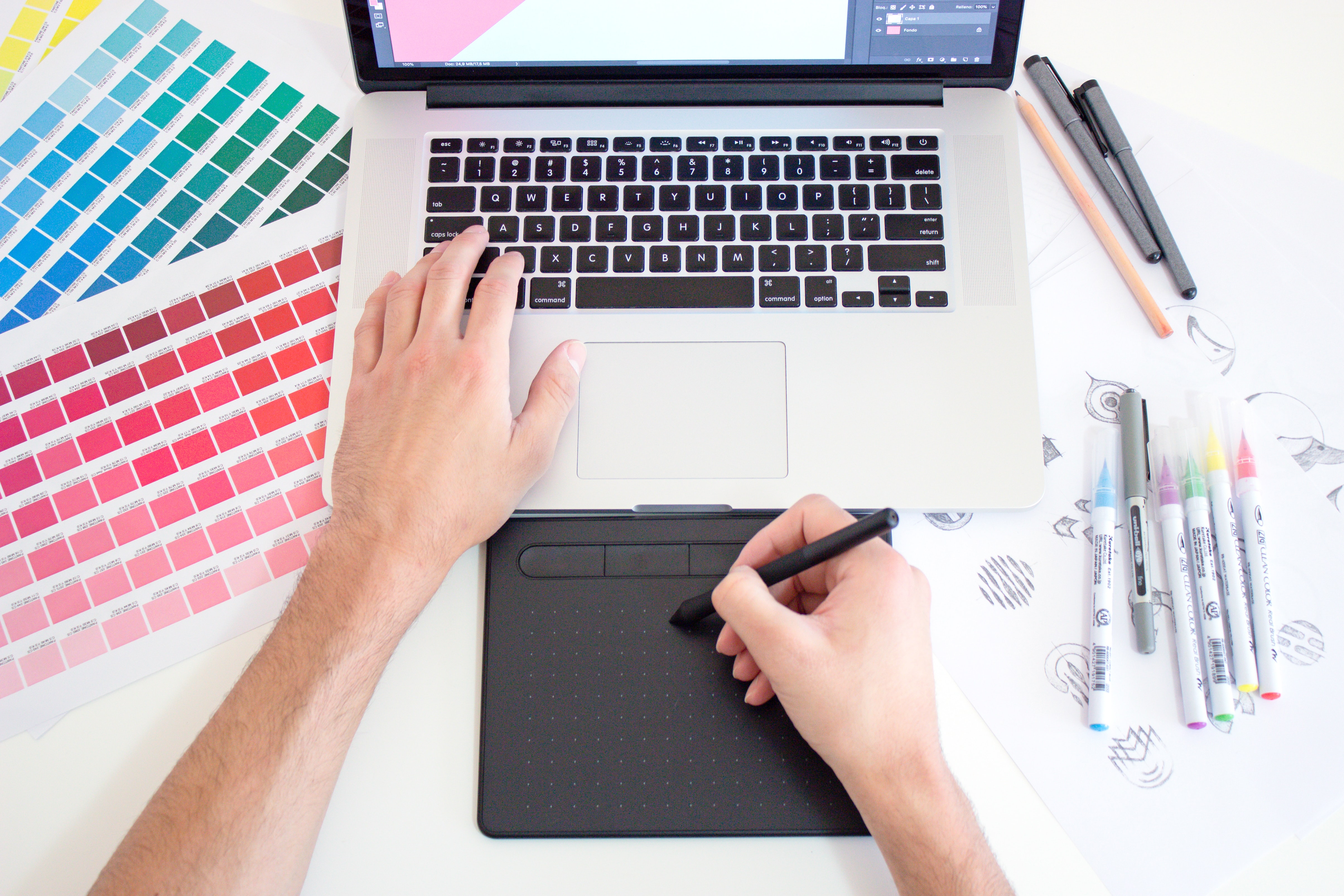
Digital Design for a Human World
Society evolves over time. Whether due to social, political, scientific, or technological occurrences, there are significant moments, such as the current global pandemic, that shift the way we collectively perceive and behave. To help us adapt to these shifts, there’s design. Design responds to the changing world and helps us navigate unprecedented times.
by Priya Patel

Infographic Design: Everything from Info to Graphic (+Free Guide)
You’ve compiled some boring information and you have to present it Friday morning. How can you avoid putting everyone to sleep?
by Daniella Alscher
Vector Graphics Software Discussions
0
Question on: CorelDRAW
How to fix the Pantone colour palette to work on all new versions of CorelDraw
• Pantones change from one Corel 2020/21 to the next, it registers as the pantone but it shows up black, we are 3 designers with the exact same coreldraw product lincence key, 2 out of the 3 registers the pantone colour as the correct colour. I like to use the Pantone+Solid Coated-V2, everyone is using the exact same colour palette..
Show More
Show Less
awesome
Show More
Show Less
0
Question on: Adobe Illustrator
How to use masks in adobe illustrator ?
I have seen there in a way to use masks in Illustrator, such as in Photoshop, but I've never found how.
Show More
Show Less
Hello -
Here is the tutorial from Adobe on how to create a clipping mask in Illustrator.
https://helpx.adobe.com/illustrator/how-to/illustrator-creating-basic-clipping-mask.html
-Melanie
Show More
Show Less
You choose the image or whatever you’d like to make a mask out of, and then place a shape over it. For example if you’d like to use a picture and want to make a circle shaped mask out of it, you draw and place a circle over the picture. It’s important that the circle’s layer is overlapping the picture’s layer. Then with both selected at the same time, you click “Object” from the menu, click “clipping mask”, and then “make”.
Show More
Show Less
Clipping mask! Shape over what you want.
Show More
Show Less
The equivalent of Photoshop's Pixel Layer Masks are called OPACITY MASKS in Illustrator. In Photoshop, the layer mask affects an entire layer. Whereas, in Illustrator, Opacity Masks work with one or more objects. You can access Illustrator Opacity Masks in the TRANSPARENCY PALLETTE> Press MAKE MASK button. (first must select 2 objects). To edit, you will click on the 2 thumbnails created in the transparency pallette.
The SECOND MASK available in Illustrator is the Clipping Mask. This is what you'd use to, say, fill a vector object with a photographic image. To activate, simply select 2 objects, placing the shape object on TOP. Got to OBJECT>MAKE CLIPPING MASK. That's it! You can release the mask by revisiting OBJECT>RELEASE CLIPPING MASK.
The power of all masks in Illustrator is the access to control over vectors as well as pixel images.
Show More
Show Less
Hi.
Making a mask in Adobe Illustrator is quick and easy.
You can use this option on images, text and vector elements.
Follow these steps:
1- Pick an image and place it on your artboard.
2- Draw the figure or place a geometric shape * above the image. * This figure is the mask.
3- Select both: Mask and Image.
4- Go to Object> Clipping Mask> Make
5- Ready :-)
Show More
Show Less
0
Question on: Adobe Illustrator
¿Why became Illustrator so slowly when you have had installed more than 50 fonts in the computer?
or when you are using After Effects at the same time, sometimes AI is crashed!
Show More
Show Less
Because AI automatically loads the fonts into the background of the program so they are quick and easy to access and use - I keep my font files in a separate folder and when they get too much I uninstall them and save them separately - you can always re-install them later if you keep the font file. If its an adobe font it shouldn't cause too much problem just uninstall the font - you can get it again on Adobe Typekit/Fonts or whatever they are calling it now at a later date.
Show More
Show Less
Vector Graphics Software Reports
Mid-Market Grid® Report for Vector Graphics
Spring 2026
G2 Report: Grid® Report
Grid® Report for Vector Graphics
Spring 2026
G2 Report: Grid® Report
Enterprise Grid® Report for Vector Graphics
Spring 2026
G2 Report: Grid® Report
Momentum Grid® Report for Vector Graphics
Spring 2026
G2 Report: Momentum Grid® Report
Small-Business Grid® Report for Vector Graphics
Spring 2026
G2 Report: Grid® Report
Enterprise Grid® Report for Vector Graphics
Winter 2026
G2 Report: Grid® Report
Small-Business Grid® Report for Vector Graphics
Winter 2026
G2 Report: Grid® Report
Mid-Market Grid® Report for Vector Graphics
Winter 2026
G2 Report: Grid® Report
Grid® Report for Vector Graphics
Winter 2026
G2 Report: Grid® Report
Momentum Grid® Report for Vector Graphics
Winter 2026
G2 Report: Momentum Grid® Report