3D Modeling Software Resources
Articles, Glossary Terms, Discussions, and Reports to expand your knowledge on 3D Modeling Software
Resource pages are designed to give you a cross-section of information we have on specific categories. You'll find articles from our experts, feature definitions, discussions from users like you, and reports from industry data.
3D Modeling Software Articles

What Is UV Mapping? How It Makes 3D Models Come to Life

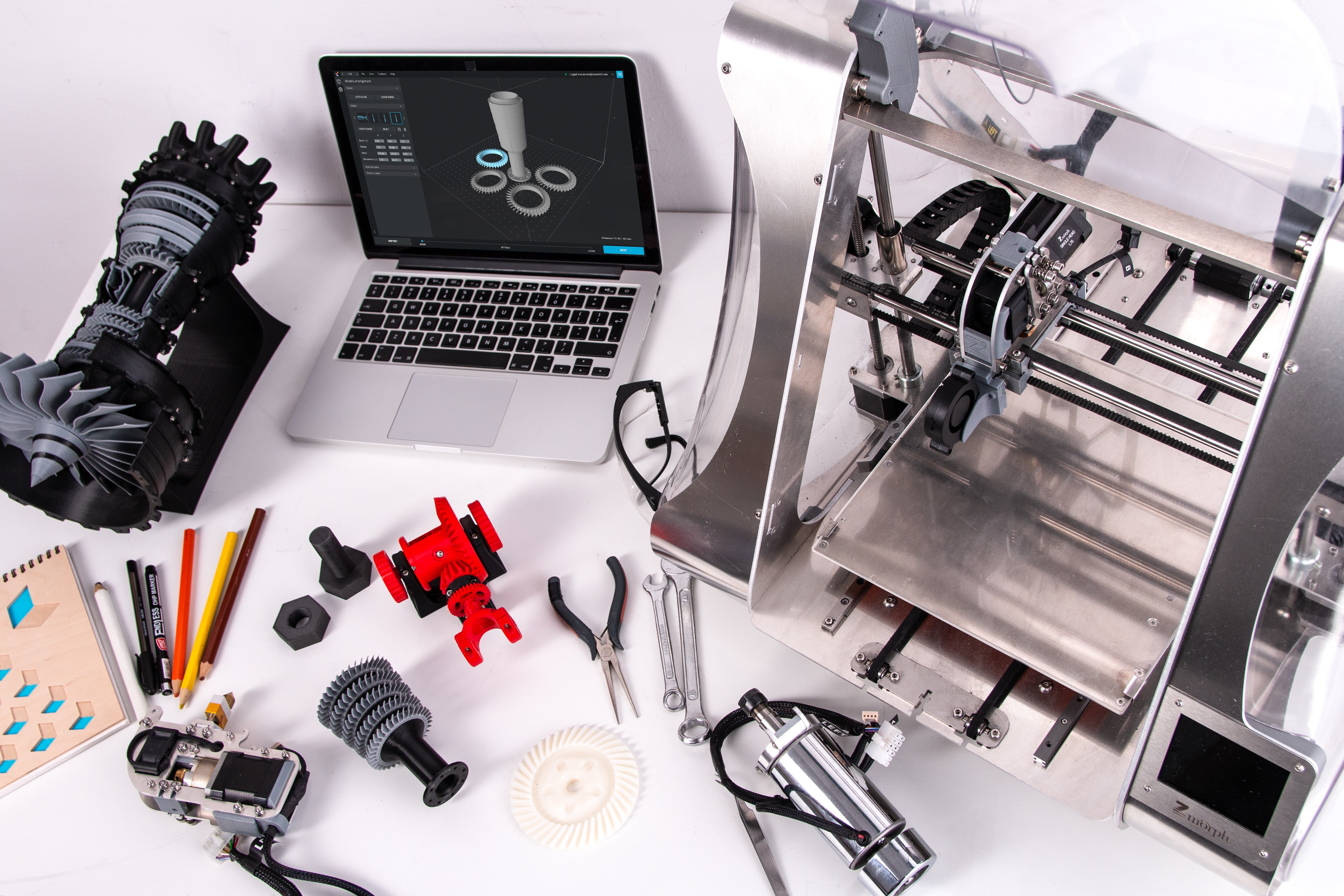
3D Printing Opens New Horizons in the Field of Education

Product Design: Create a Product Your Customers Will Love

3D Modeling: How to Grasp the Futuristic Design Concept

3D Modeling vs. CAD vs. BIM: What's the Difference?
3D Modeling Software Glossary Terms

Building information modeling (BIM) is an all-inclusive process of generating and handling information for a constructed asset. Learn more about its types.

3D printing is an additive method that builds up layers of material to form a three-dimensional object. Read about its types, technologies, and utilities.

Created using software, a 3D model represents any three-dimensional object. Learn the types, benefits, and how it differs from creating a 3D render.
3D Modeling Software Discussions
Which 3D modeling software is best for architectural visualization on a mid-range PC where clients need realistic walkthroughs without a render farm?
Most guides to architectural visualization assume either unlimited hardware or a team. This question is about neither. It's about what's actually viable when you have a mid-range PC, a client meeting in three days, and no render farm budget.
The hardware constraint matters here more than the software comparison usually acknowledges. A tool that produces beautiful output on a workstation can become practically unusable for the same scene on a mid-range machine, and that makes certain cloud-based or lighter-weight options genuinely competitive even against more capable software.
Looking at architecture-specific reviews in the 3D modeling software category, here's what actually seems to work under those constraints:
What firms and freelancers in this situation seem to need most:
- Client-presentable output that doesn't require the client to install anything
- Render times compatible with real project timelines on consumer hardware
- Enough material and lighting control to make interiors look convincing without a specialist setup
From the reviews:
- SketchUp: The most consistently mentioned tool for architecture at small practice or freelance scale. Reviewers describe building everything from garden layouts to full building concepts in it, with a modeling workflow that is fast enough to iterate with clients in real time. The rendering side typically involves a plugin like V-Ray, which adds cost and setup, but the core modeling runs comfortably on mid-range hardware.
- Coohom: Cloud rendering removes the local hardware problem entirely. Reviewers in architecture and interior design describe achieving realistic renders without powerful local GPU resources, making client presentation quality achievable on hardware that wouldn't otherwise support it. The model library covers most architectural interior elements without needing custom asset creation.
- Blender: Reviewers doing architectural visualization at a freelance scale describe the Cycles render engine as producing strong photorealistic output, though render times on mid-range hardware become significant for complex scenes. EEVEE provides faster previews, but the quality difference matters for client walkthrough quality. The software cost is zero, which changes the equation.
- Cinema 4D: Gets mentioned for architectural visualization work that needs to end up in video or broadcast format. The preset lighting setups and material system are described as practical for producing client-ready output without requiring deep renderer configuration.
For visualization work specifically at a small practice or solo scale, where does the mid-range hardware actually start creating real problems for you?
Walkthroughs change the math completely compared to stills. A 30 second walkthrough at 30 frames per second is 900 frames. Even at five minutes a frame, that's three days of nonstop rendering, for one version. On a mid-range PC that pushes you toward two paths this list doesn't really cover: real-time engines like Twinmotion, D5 or Lumion, where the walkthrough plays live instead of rendering overnight, or cloud rendering like Coohom, where the hardware problem becomes someone else's servers. Curious whether anyone here delivers client walkthroughs from a normal PC, and what they actually use.
The gap between YouTube tutorials and actual studio pipelines is bigger than most people expect. Tools that dominate beginner content don't always survive contact with real production constraints, and the tools studios actually use don't always get the same promotional attention because they're not trying to sell subscriptions to hobbyists.
Looking specifically at enterprise reviews and people describing production-level workflows in the 3D modeling software category, the production picture looks different from what tutorial channels usually feature. The names that come up most in real studio contexts are Maya, ZBrush, and Blender.
- Maya: VFX artists, character animators, and people describing studio pipelines mention Maya as where character animation and rigging actually happen. Reviewers who've used it for nearly two decades describe the viewport navigation, rigging architecture, and character tools as features that become genuinely difficult to give up once you're comfortable with them. The learning curve and hardware requirements are taken as given at the studio level rather than treated as obstacles.
- ZBrush: Not usually the entire pipeline, but consistently the sculpting layer within one. Reviewers in film, games, and TV describe it as universal for production-quality character and creature work. It appears in pipelines alongside Maya, not instead of it.
- Blender: Increasingly real at the studio level, particularly smaller studios and indie productions, where per-seat licensing is a meaningful cost factor. Reviewers describe the tool gap between Blender and Maya as narrower now than a few years ago, and some smaller studios say they build their entire pipeline in it.
- Cinema 4D: The broadcast and motion graphics answer. Reviewers from studios doing commercial work, brand animation, and broadcast describe it as the tool that handles that specific category of production better than anything else. The MoGraph system and Redshift are specifically called out in a production context.
- Unity: Not a modeling tool, but worth mentioning because reviewers describe it as the runtime layer where models built in Maya, Blender, or ZBrush end up for real-time, game, and interactive production. The pipeline runs from modeling software into Unity, not within it.
For anyone who's worked inside a studio rather than just read about one, how different was the actual day-to-day stack from what you expected coming in?
Studio tool lists are useful for exactly one thing: figuring out what to learn if you want a studio job. Studios don't pick one winner. They run a different tool per department, so "what studios use" is really a map of jobs. Want to be hired as a character animator? Learn Maya, because that's what the rigs are built in. But if you're an indie making your own work start to finish, copying studio choices mostly buys you their costs without their pipeline.
Researching this specific setup in the 3D modeling software category: Mac laptop, product mockup work, no external GPU, needs to travel well. The tool list narrows quickly once you put those constraints together.
- SketchUp: Reviewers doing product and spatial modeling on Mac describe the interface as light enough to run comfortably on laptop hardware without the thermal throttling issues that heavier tools cause during viewport work. The push/pull geometry and 3D Warehouse library mean fast iteration on product shapes. Does the web version actually cover enough of the Pro features to be viable as a primary tool, or does the desktop app become necessary once projects get more complex?
- Cinema 4D: Reviewers from design and advertising backgrounds consistently describe it as the Mac-friendliest professional option in this space. The material presets, lighting setups, and the way it connects to After Effects are called out as practical for product mockup workflows. How does rendering performance look on an M-series chip without a dedicated GPU for a mid-complexity scene?
- Blender: Runs on Mac, and reviewers doing architectural and product visualization describe the Cycles renderer as producing strong output even on consumer hardware, though render times vary significantly by scene complexity. EEVEE helps with previews, but the quality gap shows for client-facing output. Is there a practical point on a MacBook where complex Blender scenes become unworkable without external hardware?
- Meshy: Processes in the cloud, so what the Mac actually handles is just the browser and basic editing. For mockup work where the base geometry can be generated from a reference rather than modeled by hand, reviewers describe this as a genuine advantage when hardware is limited. How far can cloud-generated geometry get you before you need a desktop tool for refinement?
For Mac users doing this kind of work, what's the hardware ceiling you actually run into first?
Check the render engine, not the modeling app. Some engines run natively on Apple silicon and are quick even on a MacBook Air. Others were built assuming Nvidia cards and quietly fall back to the CPU on a Mac, which is the difference between a ten minute render and an hour. "Mac compatible" on the box doesn't tell you which one you're getting, so run one real render on your actual laptop during the trial.